Viewing Progress of in:Flux Cloud Project
Upon clicking the Run In Cloud button, the Cloud Manager will switch to the Activity Summary tab. It will go through various operations for starting up virtual machines and uploading the cases.
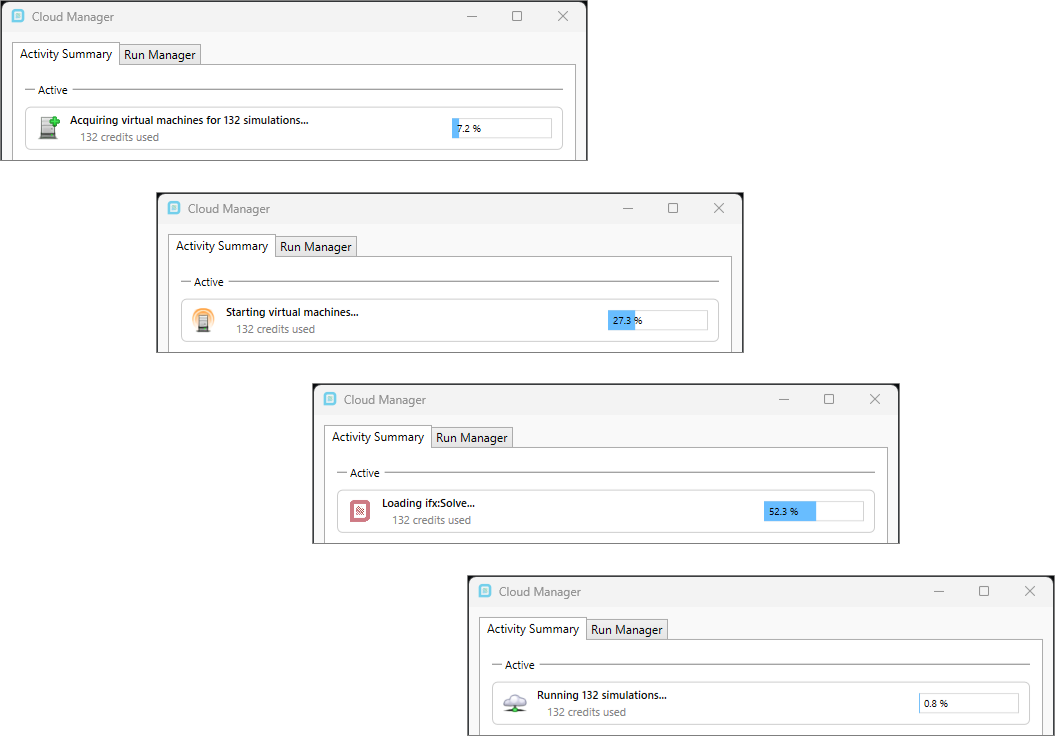
Tutorial 21 - Figure 08 - Various starting windows for sending simulations to the cloud.
When the simulations start running, you can click the Running 132 simulations... text to expand the progress graph. Here the estimated number of virtual machines needed is indicated with a dotted blue line and the actual number of virtual machines used will appear as a solid blue line. This is expected to change with time as the ventilation cases will run in bulk first, followed by the dispersion cases. Over time we will see a darker blue line appear indicating total progress of the computation of the project.
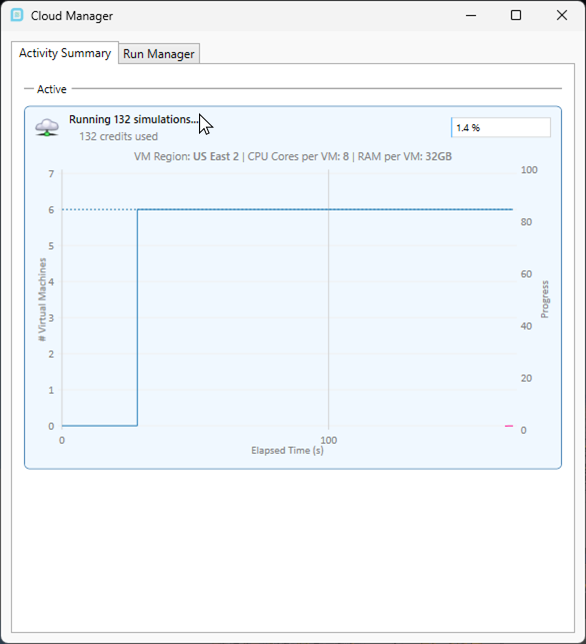
Tutorial 21 - Figure 09 - Expanded progress graph for the initially running in:Flux Cloud project
As the simulations continue to calculate, the completion percentage for each case will appear in the Project Items Tab.
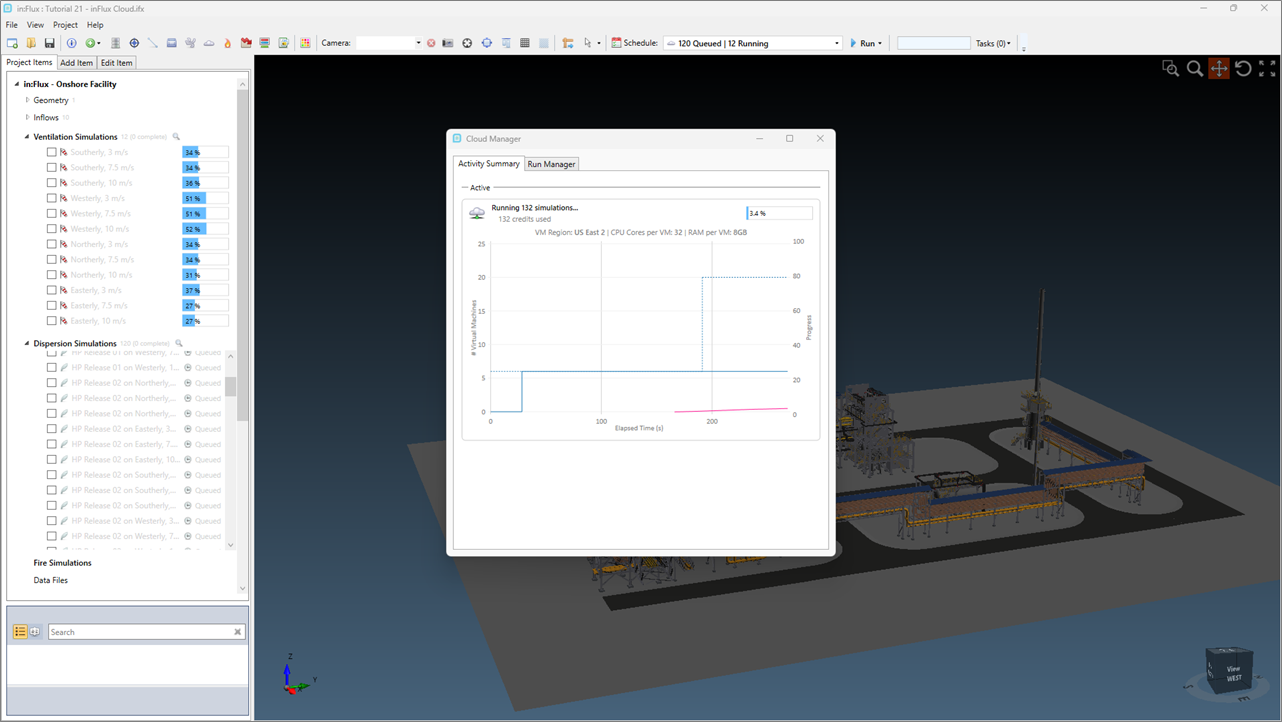
Tutorial 21 - Figure 10 - Showing how progress for each individual simulation is shown in the main in:Flux interface
When simulations complete, they will appear with a blue  text, indicating the simulations were run in the cloud. Notice this coloring is different than the normal green completion text indicating a locally run case.
Once all ventilation simulations have complete, the number of virtual machines will increase to run the dispersion cases in bulk. The number of virtual machines will vary with each project. Generally, 1-2 simulations will be sent to each virtual machine. In this example, 60 virtual machines were used for the 120 dispersion cases.
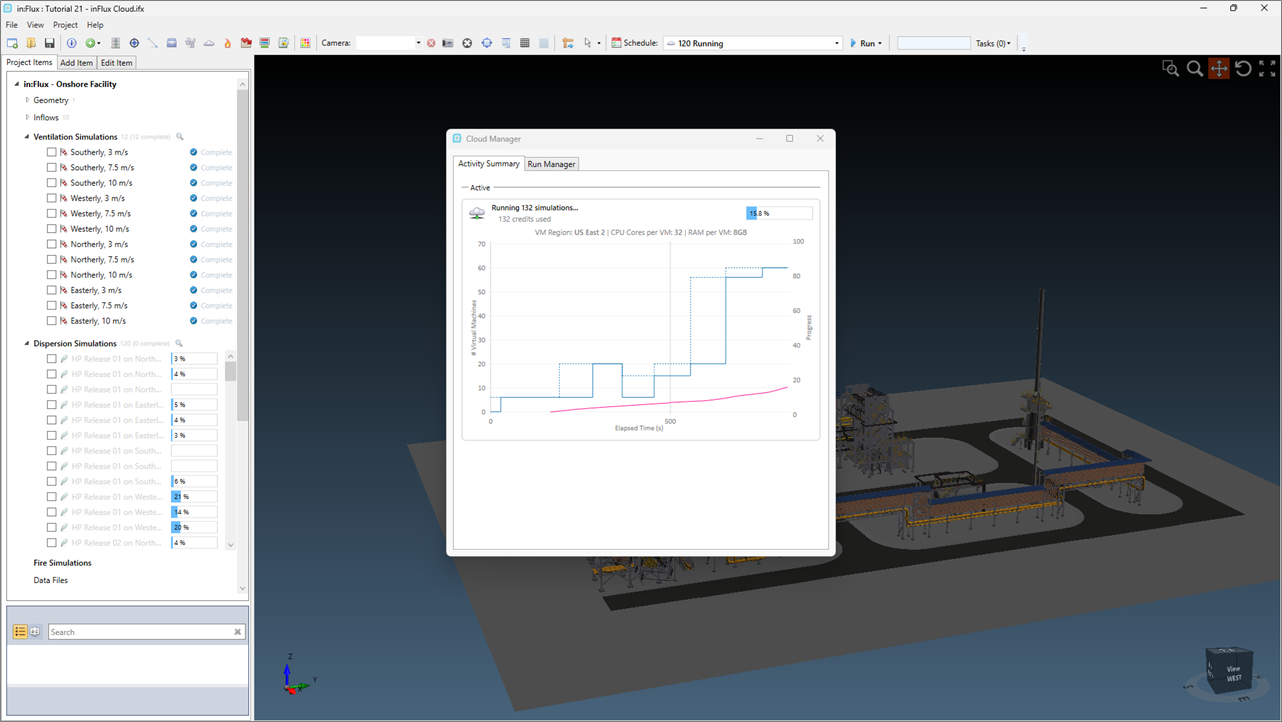
Tutorial 21 - Figure 11 - After completion of ventilation cases, the number of virtual machines increases to run the dispersion cases in bulk
As the cloud project approaches 100% completion, the number of virtual machines will decrease as they start shutting down.
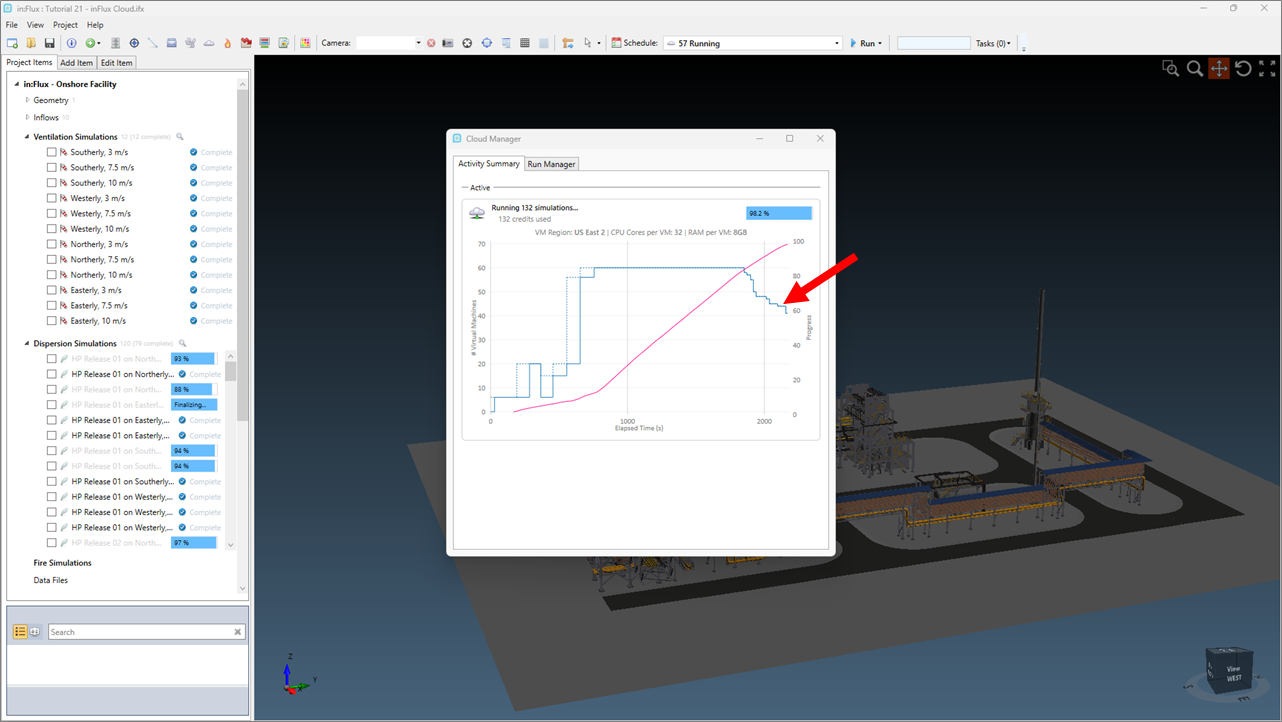
Tutorial 21 - Figure 12 - Indication of virtual machines shutting down as calculations complete
After a finalizing process, the project will complete.
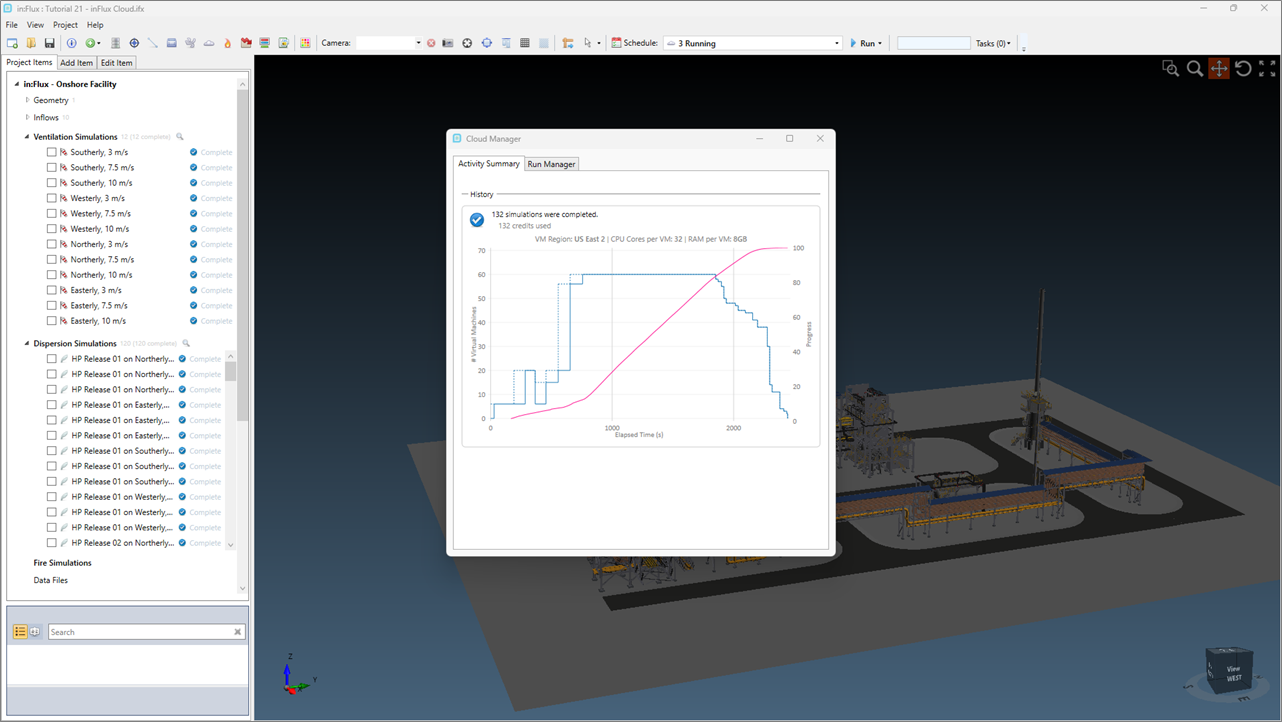
Tutorial 21 - Figure 13 - Cloud Manager and in:Flux Project Items tab showing completed 132 cases