Pausing License Keys
Both Detect3D and in:Flux licenses can be paused from the License Manager. Pausing lets you suspend your use of the software until you need it again, e.g. while waiting for client feedback. This means you may activate your license at one date, complete your analysis and reporting, then pause the software while feedback is pending, and then reactivate to edit your project with the client's comments.
If your license includes the ability to pause it, the option will appear in the License Manager as described below. Pausing must be requested before your license is issued. The software versions that support this feature are:
-
Detect3D — version 2.60 and beyond
-
in:Flux — version 3.20 and beyond
How to pause your license key
If your license key has a pause available, a Pause option will appear beneath it in the License Manager (shown below).
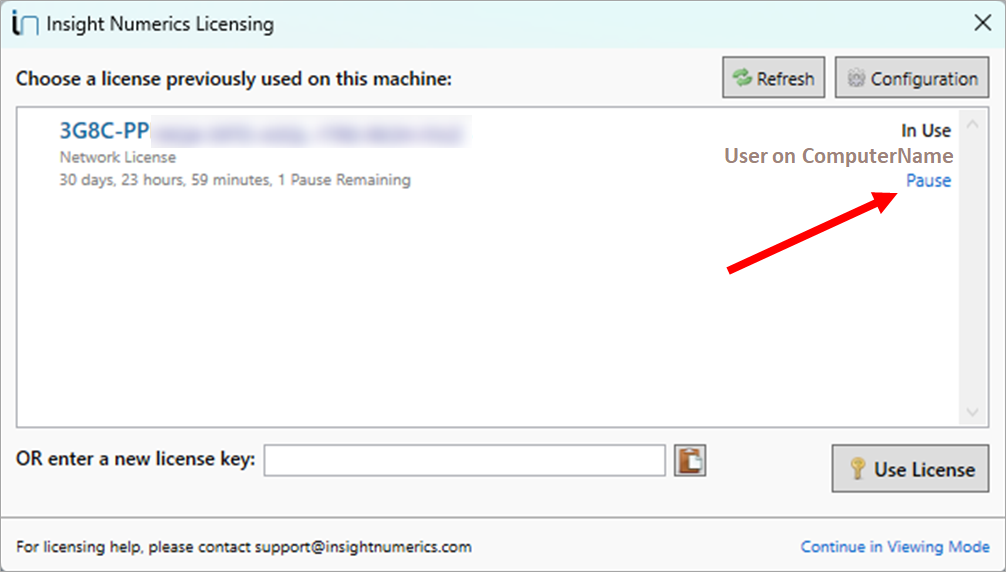
License Manager showing the available Pause link under a license key
After clicking the Pause text, you will be prompted to verify that the pause will start.
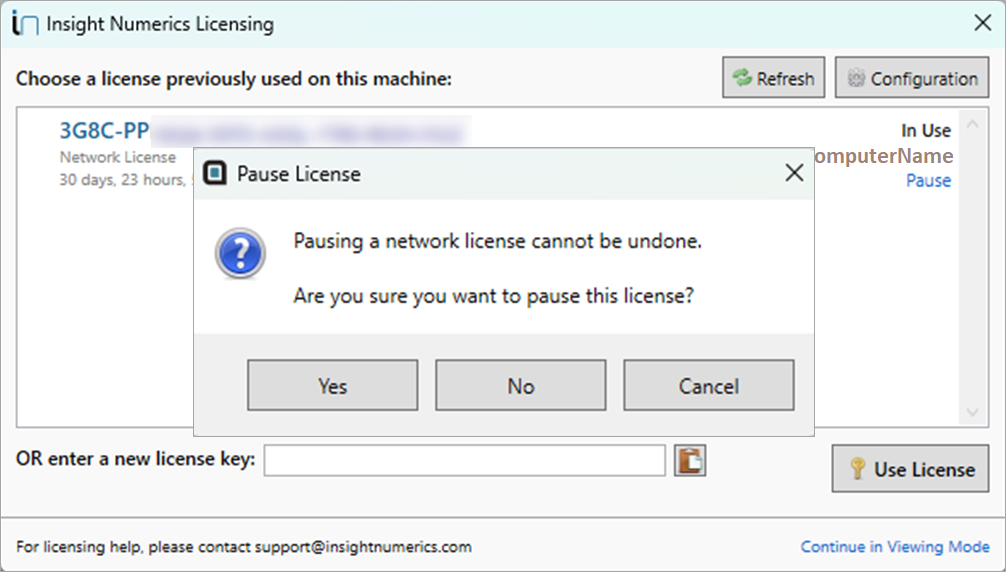
Confirmation prompt
Click Yes to begin. This suspends the license and your access to the full version of the software. You may still open Detect3D or in:Flux in Viewing Mode while the license is paused.
While the license is paused, the License Manager displays the license key, the remaining time, and a status showing that the key is currently paused (shown below).
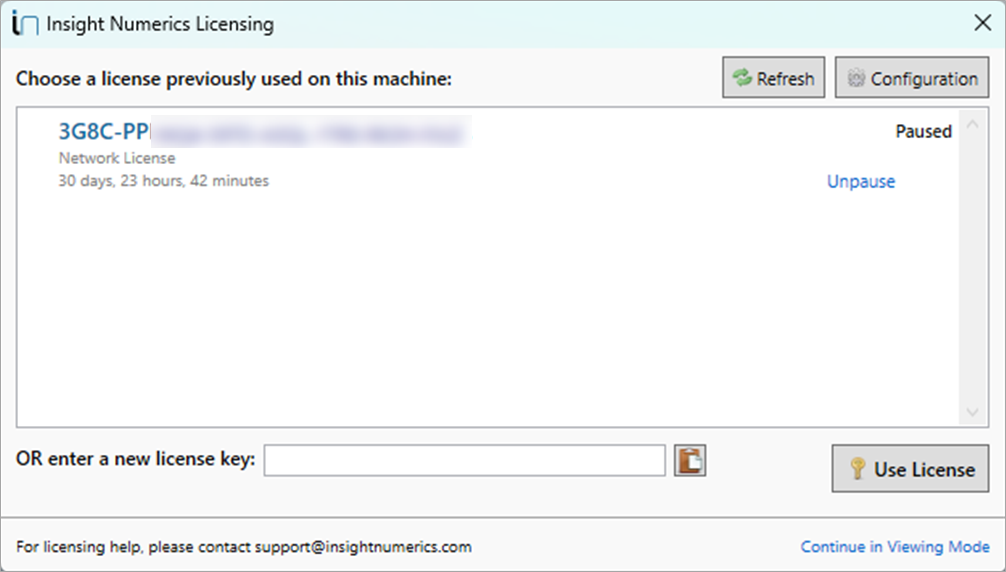
License Manager in the paused state
Reactivating your license key
When you are ready to resume work, return to the License Manager and click the Unpause blue text beneath the license key. You will be prompted to confirm reactivation of license.
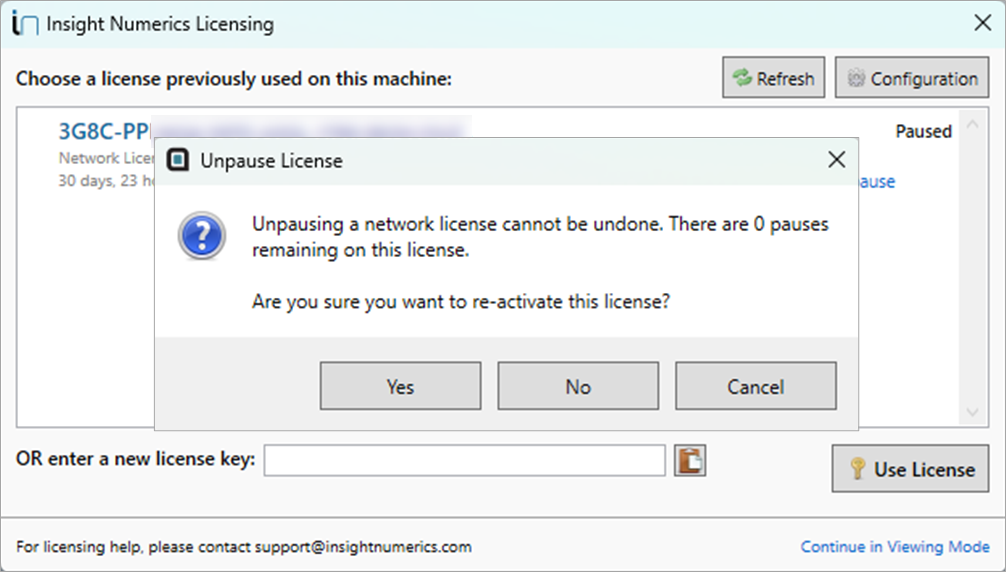
License Manager showing the Unpause confirmation
If you have any questions about pausing licenses or how to request the feature, please contact us at info@insightnumerics.com.